How to Download and Use SolidWorks Drawings
Last updated on Jan 15, 2026
Overview
To streamline your design-to-production process, JLCMC offers native SolidWorks drawings for all products on the site. This guide will walk you through selecting, downloading, and integrating these models into your SolidWorks design.
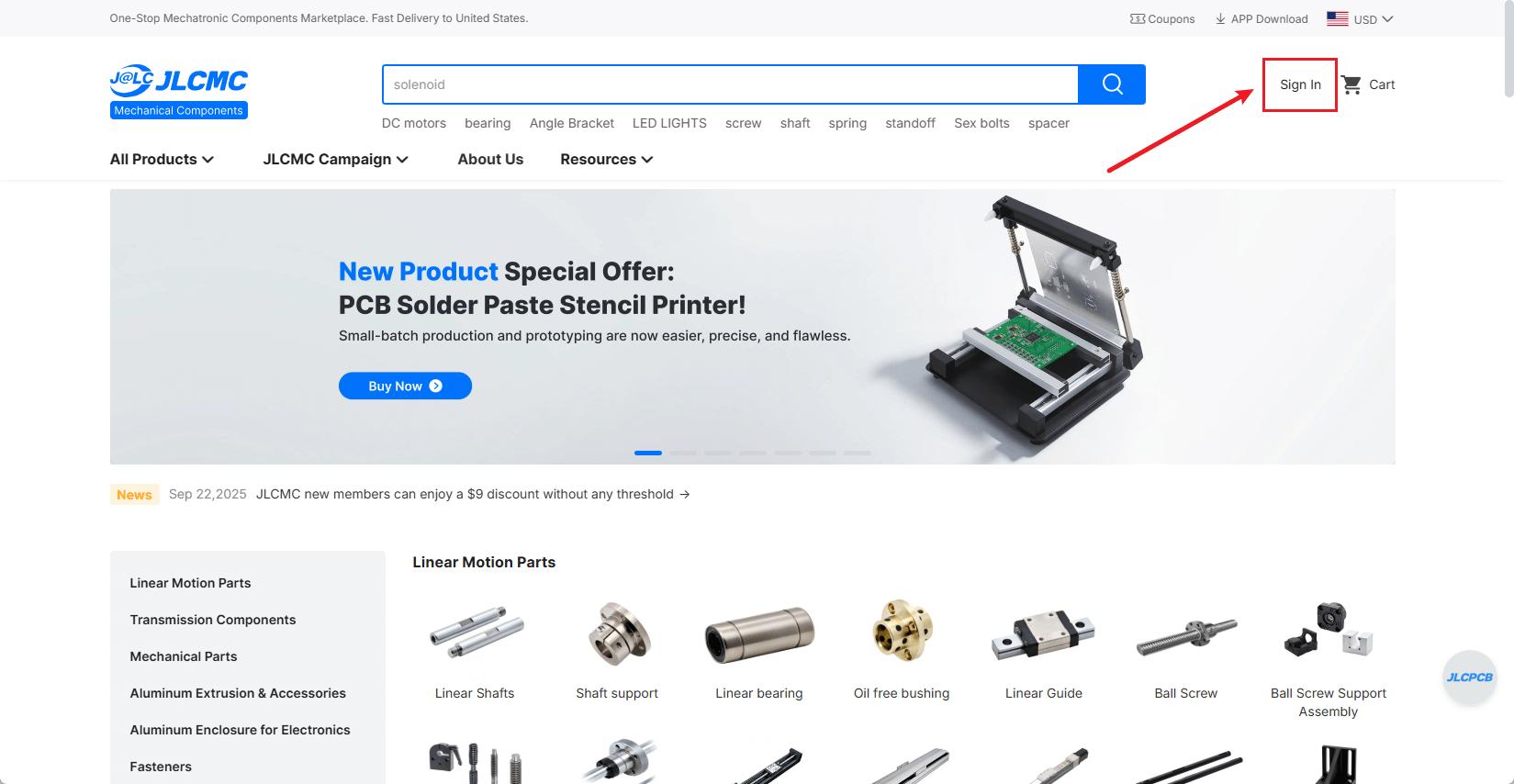
1. Visit the JLCMC Homepage.

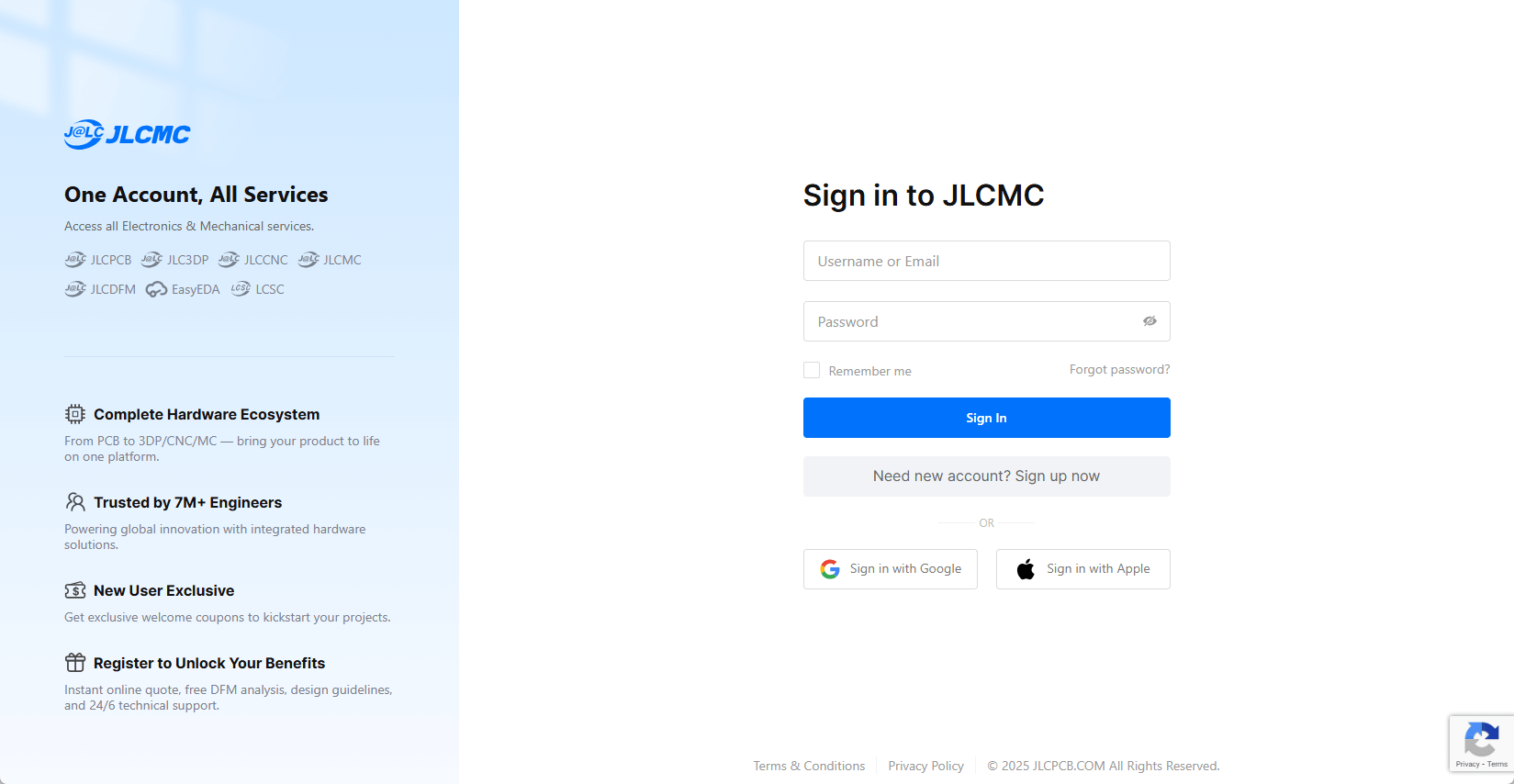
2. Register or log in to your account
3. Select a product category
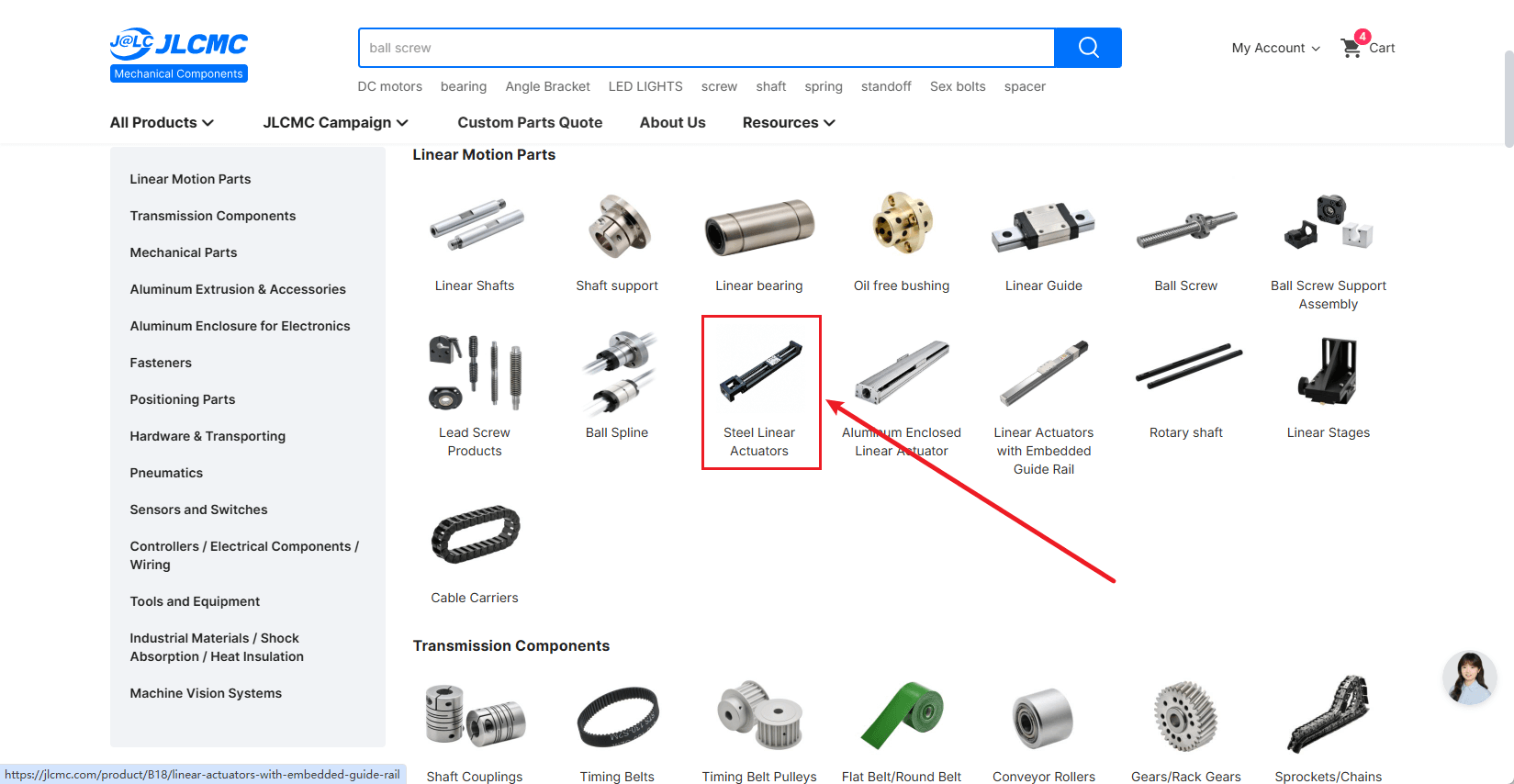
4. Choose the product type
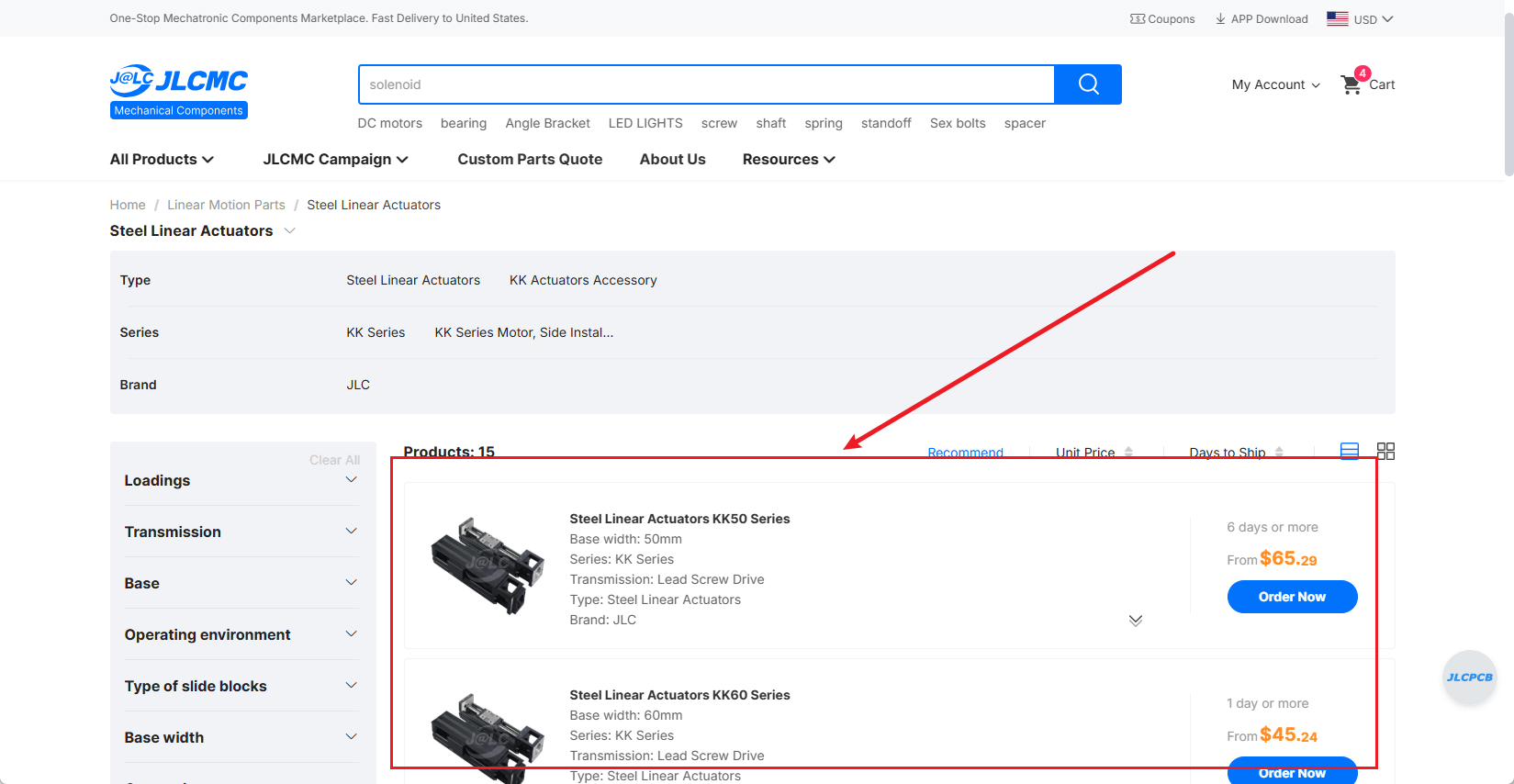
5. Filter product models
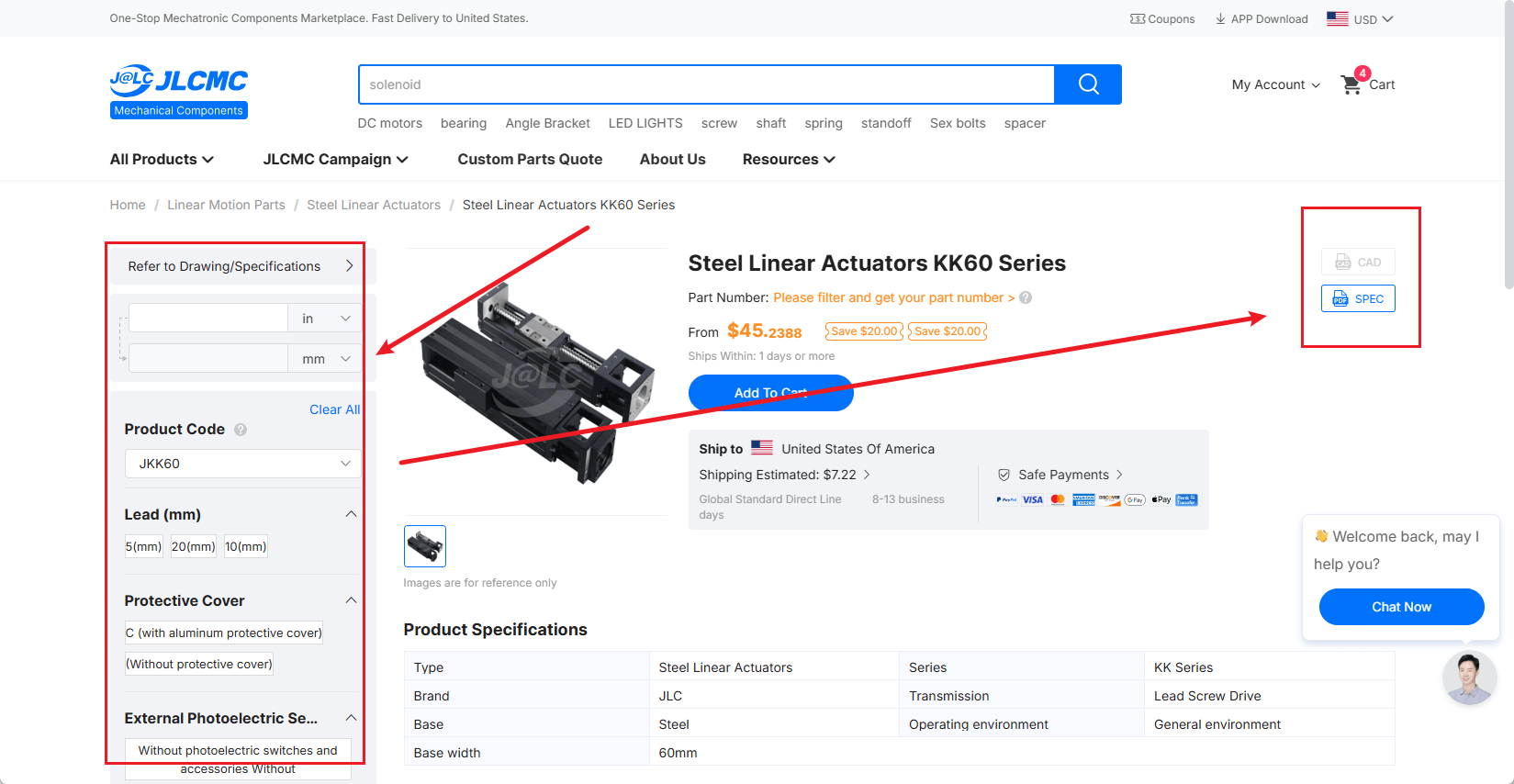
6. Click the CAD button
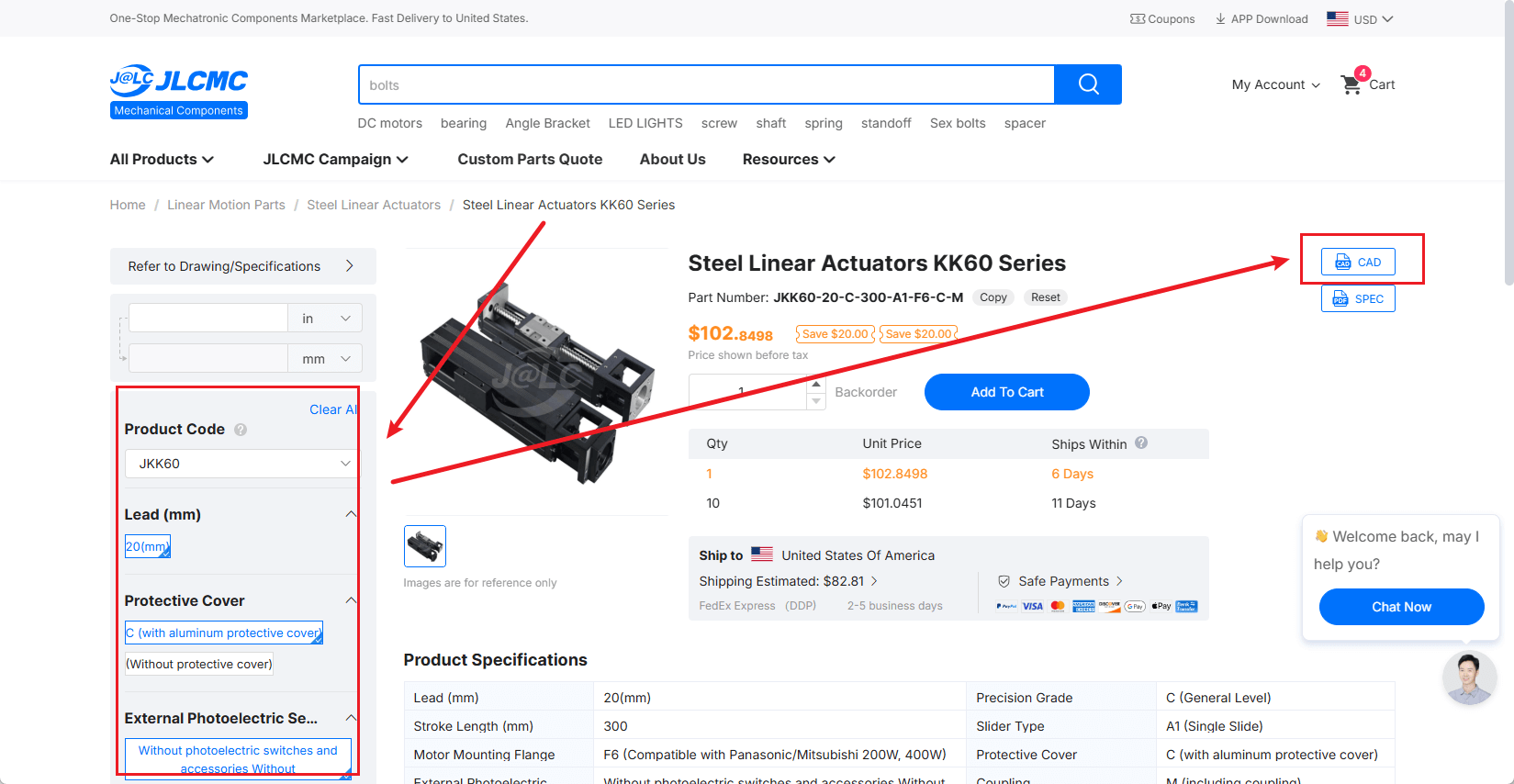
7. Select the SolidWorks file
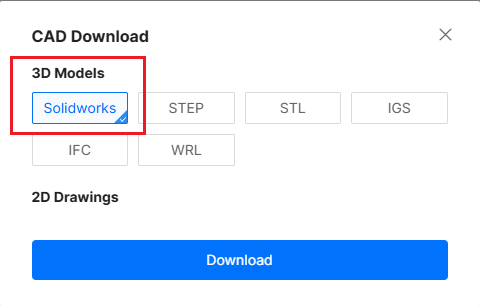
8. Download to your local device
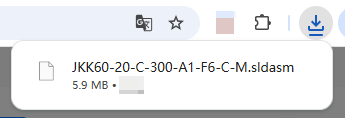
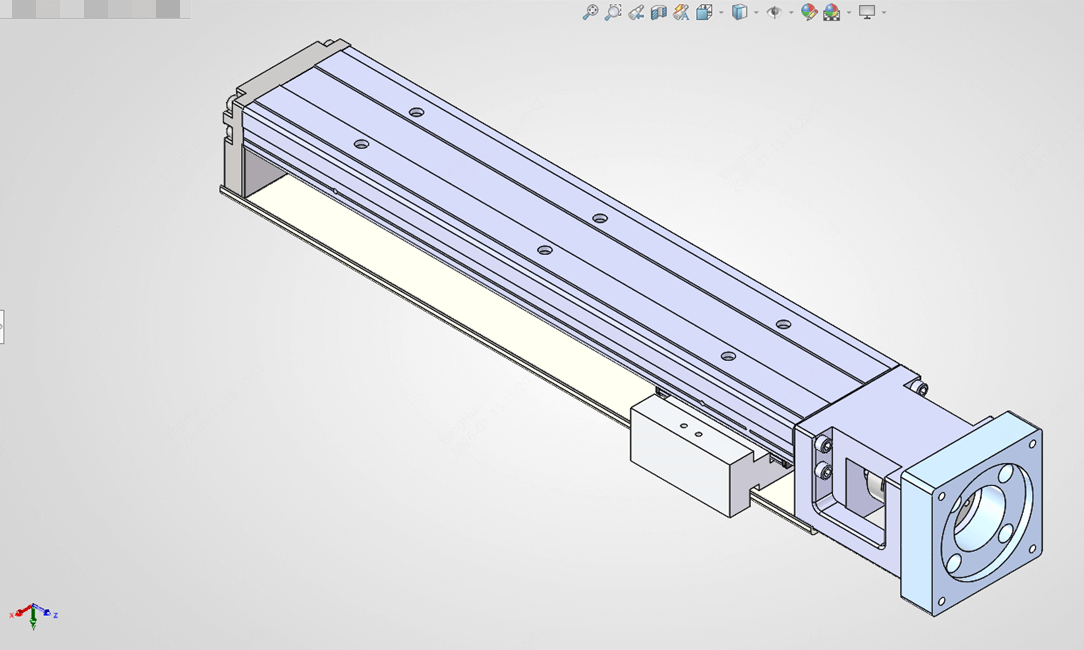
9. Open the file in the SolidWorks software
Frequently Asked Questions
Q: Why can't I open the SolidWorks file?
A: Ensure your SolidWorks version is 2020 or newer to avoid compatibility issues.
Q: Why is the CAD button still greyed out after selecting a product?
A: JLCMC offers over 2 million SKUs; most 3D models are complete; contact customer service for additional models.
Q: Why does the downloaded file not match the product?
A: If the file doesn't match the product, please contact customer service for the correct SolidWorks drawing.
Q: Can I open SolidWorks files with other software?
A: You can view the files using eDrawings Viewer or Free3D, which is open-source and free.