How to Use a Barcode Scanner: A Complete Guide for Beginners
6 min
- Understanding Barcode Scanner Types
- Initial Setup and Installation
- Proper Scanning Technique
- Configuration and Customization
- Troubleshooting Common Issues
- Best Practices for Optimal Performance
- Frequently Asked Questions
- Conclusion
In an era where every millisecond of data latency can impact the bottom line, mastering barcode scanning is the first step toward operational excellence. Manual data entry is a relic of the past; precision scanning is the bridge to real-time inventory visibility. Whether you are deploying a new fleet of scanners or refining existing processes, this manual explores the strategic setup and advanced techniques required to eliminate human error and maximize warehouse productivity.
To navigate today's complex data landscape, understanding the structural evolution of symbology is essential. Exploring the architecture of 2D Barcodes reveals how they pack massive data into compact footprints, overcoming the capacity limits of traditional linear codes. Once your data requirements are clear, deploying ruggedized hardware is the final step to operational success. We invite you to experience the JLCMC Industrial Scanner series—engineered for high-intensity environments, these devices offer superior decoding depth and durability to ensure peak capture efficiency on any production floor.
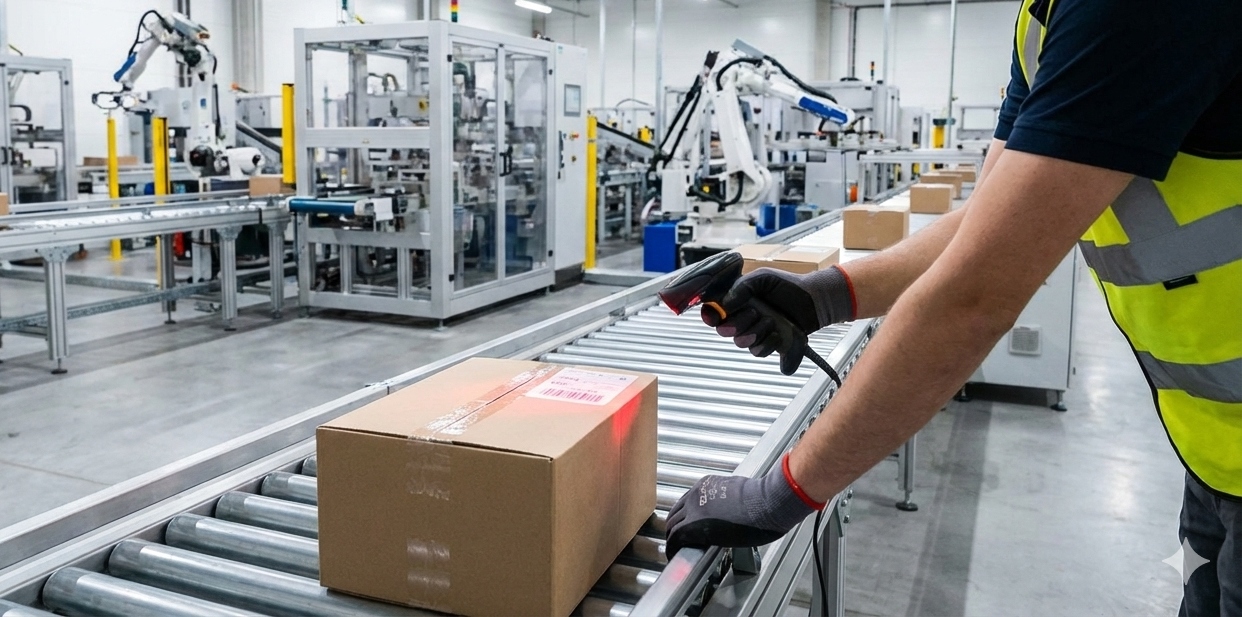
A worker is using a handheld barcode scanner to scan the barcode on the package.
Understanding Barcode Scanner Types
Selecting the right barcode scanner involves more than mere preference; it is a strategic decision that determines scanning speed, distance flexibility, and durability in the field. Handheld scanners are the most common variety, featuring a trigger-activated design that users point at barcodes. Wireless barcode scanners offer greater mobility, connecting via Bluetooth or Wi-Fi to eliminate cable constraints. Presentation scanners remain stationary on countertops, automatically detecting barcodes presented in front of them. 2D imagers can read both traditional linear barcodes and modern QR codes, making them versatile for various applications.
Initial Setup and Installation
Setting up a barcode scanner is typically straightforward. For USB barcode scanners, simply plug the device into an available USB port on your computer. Most modern operating systems recognize these devices automatically without requiring additional driver installation. Once connected, the scanner functions as a keyboard input device, sending scanned data directly to your cursor location.
Wireless barcode scanners require additional pairing steps. Enable pairing mode on your scanner (usually by holding a specific button combination), then access your computer's Bluetooth settings to discover and connect the device. Some wireless models include a USB dongle that creates a dedicated connection without Bluetooth configuration. Always ensure your scanner is fully charged or has fresh batteries before initial use.
Proper Scanning Technique
Achieving consistent scan results requires proper technique. Position the scanner approximately 4 to 6 inches from the barcode, maintaining a perpendicular angle to the label surface. For handheld units, squeeze the trigger and hold the scanner steady until you hear the confirmation beep. With presentation scanners, simply pass the barcode across the scanning window at a moderate pace.
Ensure adequate lighting on the barcode, as shadows or glare can interfere with reading. If a scan fails, adjust the distance slightly and try again. Clean the scanner's lens regularly with a soft, lint-free cloth to maintain optimal performance. For damaged or poorly printed barcodes, try scanning from different angles or request a replacement label.
Configuration and Customization
Most barcode scanners support configuration through special programming barcodes included in the user manual. These allow you to customize scanner behavior to match your workflow requirements. Common configuration options include adding prefix or suffix characters (such as Enter or Tab), changing scan modes (continuous versus trigger-activated), and adjusting beep volume or tone.
Advanced models offer data formatting options, allowing you to parse or manipulate scanned data before transmission. Some scanners support multiple interface modes, switching between USB keyboard emulation, USB COM port, and RS-232 serial connections. Consult your device's programming guide for specific barcode configurations relevant to your application.
Troubleshooting Common Issues
When scans fail to register, verify that the scanner is properly connected and powered. Check cable connections for wired models, and confirm battery levels for wireless units. Ensure the barcode type is supported by your scanner model, as some older devices cannot read 2D codes. If characters appear garbled, verify that keyboard language settings match between your computer and scanner.
For persistent scanning failures, reset the device to factory defaults using the programming manual, then reconfigure as needed. Update firmware when available to ensure compatibility with newer barcode standards. Regular maintenance, including lens cleaning and battery care, prevents most performance issues.
Best Practices for Optimal Performance
To maximize scanner longevity and reliability, implement these professional practices. Store scanners in protective holsters or cradles when not in use to prevent drops and damage. Avoid exposing devices to extreme temperatures, moisture, or direct sunlight for extended periods. Schedule regular cleaning of both the scanning window and charging contacts.
Train staff on proper scanning techniques to minimize errors and equipment wear. Establish clear procedures for handling damaged barcodes and reporting equipment malfunctions. Keep programming manuals accessible for quick configuration changes. Consider investing in scanners with antimicrobial coatings for healthcare or food service environments.
Frequently Asked Questions
Q: Do barcode scanners work with all types of barcodes?
A: Not all scanners support every barcode type. Basic laser scanners typically read linear (1D) barcodes only, while 2D imagers can decode both linear codes and matrix codes like QR codes and Data Matrix. Check your scanner specifications to ensure compatibility with the barcode formats you need to read.
Q: Can I use a barcode scanner with my smartphone or tablet?
A: Yes, many Bluetooth-enabled barcode scanners pair with smartphones and tablets. Some models include dedicated apps, while others function as keyboard input devices compatible with any text field. Ensure your mobile device supports Bluetooth and has the necessary app or software to receive scanned data.
Q: Why does my scanner beep but not enter data?
A: This typically indicates the scanner successfully read the barcode but cannot transmit data to your system. Verify the connection cable or wireless pairing. Ensure your cursor is positioned in a text field where data can be entered. Check that the scanner is in the correct interface mode (HID keyboard versus serial port).
Q: How do I scan barcodes on reflective or curved surfaces?
A: For reflective surfaces, adjust the scanning angle to minimize glare. Try tilting the scanner 15 to 30 degrees off perpendicular. For curved surfaces like bottles, position the scanner to capture the barcode at the curve's center where distortion is minimal. 2D imagers generally perform better on curved surfaces than laser scanners.
Q: What is the typical range of a wireless barcode scanner?
A: Bluetooth scanners typically operate within 30 to 100 feet of the paired device, depending on environmental factors and model specifications. Wi-Fi-enabled scanners can function anywhere within network coverage. Physical obstacles, interference from other devices, and battery levels can affect range and connection stability.
Conclusion
Mastering barcode scanner usage enhances operational efficiency across countless industries. By understanding scanner types, following proper setup procedures, implementing correct scanning techniques, and applying troubleshooting knowledge, you can ensure reliable performance from your equipment. Regular maintenance and staff training further extend scanner lifespan and accuracy. Whether managing inventory, processing sales, or tracking assets, a well-configured barcode scanner streamlines data capture and reduces manual entry errors, ultimately saving time and improving accuracy in your daily operations.
Keep Learning
The Essence of Barcode Symbology: A System of Data Encoding Rules
Introduction Most people only notice barcodes when something moves through a checkout counter or gets sorted in a warehouse. It's a quick flash of light, sometimes a beep, and then the moment is gone. But what's actually happening is more structured than it looks. A barcode is not just a visual pattern—it's a structured relationship between how data is encoded and how machines interpret it under imperfect conditions. In practice, that agreement is called a barcode symbology. And once you start looking......
Spot Common Barcode Scanner Issues Early to Prevent Business Losses
Barcode scanning sits quietly at the center of modern operations. From warehouse receiving docks to hospital inventory rooms and retail checkout counters, it enables speed, traceability, and accuracy at scale. When scanning works, workflows move seamlessly. When it doesn’t, even a small disruption can trigger inventory discrepancies, shipping delays, or reconciliation errors that ripple through the system. A recurring problem with barcode scanners rarely stems from sudden device failure. Instead, most......
Understanding 1D Barcode Technology: Types, Standards, and Applications
In today's fast-paced business environment, efficiency and accuracy are paramount. The 1D barcode, also known as a linear barcode, stands as one of the most transformative technologies in data capture and inventory management. From the checkout counters of retail stores to the complex supply chains of global logistics, these simple yet powerful codes have revolutionized how businesses track, manage, and process information. This comprehensive guide explores the world of 1D barcodes, examining their st......
Explore Barcode Scanner Types: Technology, Form Factor, and Practical Uses
If you have ever stood in a checkout line, watched a warehouse worker pull items from shelves, or seen a nurse scan a patient's wristband, you have witnessed barcode scanning in action. It is one of those technologies that has become so integrated into routine workflows that most people rarely think about what is actually happening when that red light flashes across a label. But for the people responsible for choosing, implementing, or maintaining these systems, the differences between scanner types m......
Barcode Scanner Basics: What It Is & How It Works
Originally used as a simple retail tool, barcodes have now evolved into a core technology widely applied across industries such as logistics, healthcare, manufacturing, and asset management. They play a key role in inventory management, compliance tracking, and real-time data processing, ensuring operational accuracy across various sectors. To truly understand the capabilities of barcode scanner technology, one must look beyond the printed label. The real impact comes from how quickly information is t......
Scan Code Types: What They Are & Why They Matter
Barcodes and matrix symbols quietly move products and components through every industry—from retail checkout lanes to medical equipment parts. Choosing the right scan code affects scanning speed, data accuracy, label durability, and long-term scalability. Some codes excel at rapid retail scanning. Others are engineered for tiny or curved surfaces, like surgical instruments, electronics, or micro-packaging. The right type ensures readable codes even when space is limited, or labels are damaged, while t......